
Electronics Cords and Ports: Which Connections Are Worth Caring About
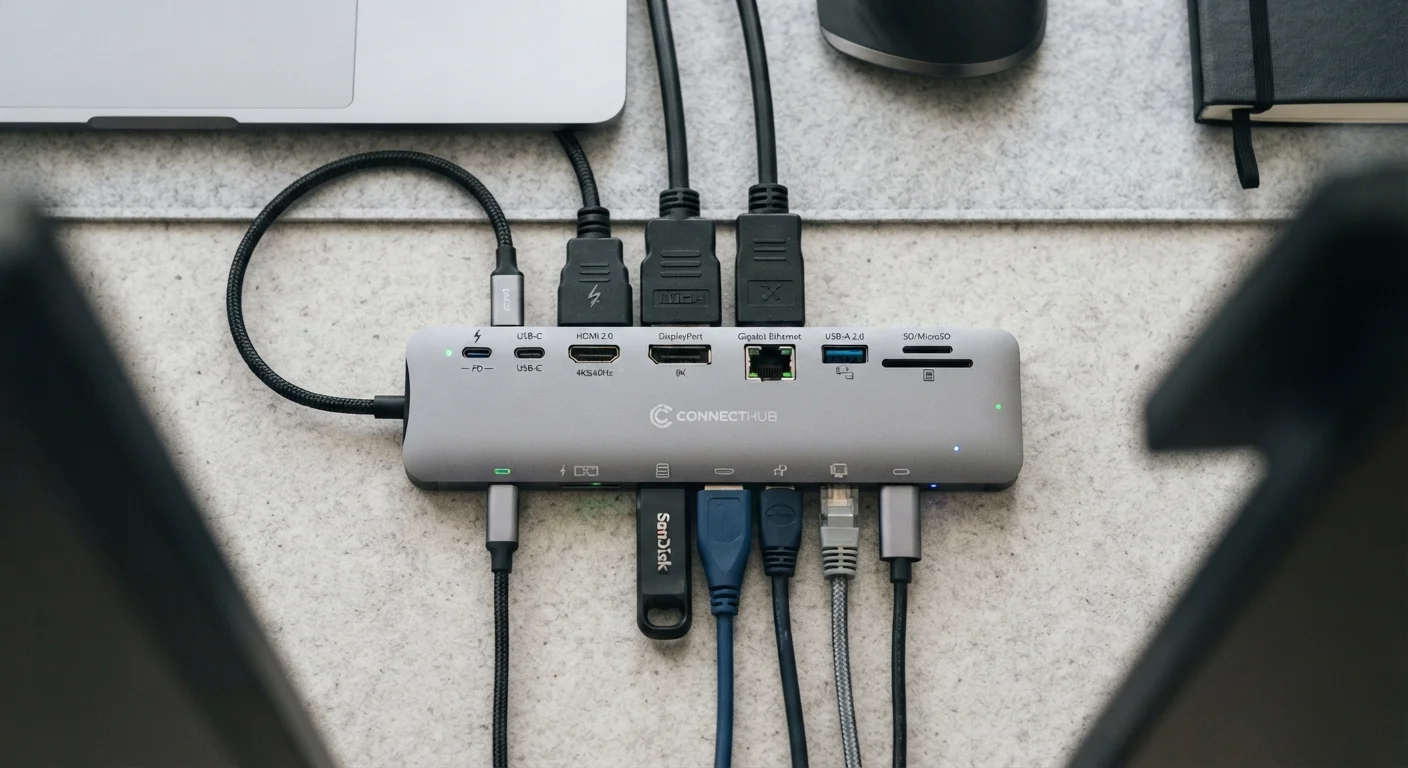
Photo credit: ProximityFinds.com | One-stop Reading Source
HDMI 2.1, USB-C, DisplayPort, Thunderbolt—port types multiply faster than most people track. Here's a grounded look at which connections matter and why.
Key Takeaways
- USB-C is a connector shape - what it can actually do depends on the protocol running through it.
- HDMI 2.1 matters most when pairing a display with a high-refresh-rate source like a gaming console or PC.
- Thunderbolt 4 offers the highest bandwidth of any consumer cable connection but requires compatible devices on both ends.
- DisplayPort is often the smarter choice over HDMI for PC monitor connections at high refresh rates.
- Legacy ports like USB-A remain useful, but adapters introduce potential performance and compatibility trade-offs.
Why Port Literacy Matters More Than Ever
Walk into any electronics store or scroll through a product listing and you'll encounter a dense alphabet soup of connection standards: USB-C, HDMI 2.1, Thunderbolt 4, DisplayPort 2.1, USB4. These aren't interchangeable marketing terms - each represents a distinct set of capabilities, bandwidth ceilings, and real-world trade-offs. Getting them wrong means buying a cable that bottlenecks your display, a dock that won't charge your laptop, or a monitor that can't hit its advertised refresh rate.
The confusion is compounded by the fact that a single physical connector shape - USB-C being the clearest example - can carry wildly different protocols. Two devices with identical-looking ports may be fundamentally incompatible for a given task. Understanding what's actually behind the port symbol is the most useful tech skill most people never develop.
This guide cuts through the noise on the connections that show up most frequently in American homes and offices, explaining what each standard actually does and when it genuinely matters. If you're setting up a home tech environment from the ground up, pairing this with a broader beginner's home tech guide can help you prioritize purchases intelligently.
USB-C: The Connector That Isn't One Standard
USB-C is a physical connector shape, not a performance specification. A USB-C port on a budget Android phone may support only USB 2.0 speeds (480 Mbps), while the same-looking port on a premium laptop might carry Thunderbolt 4 at 40 Gbps. The spec that matters is the protocol running through the connector, not the oval shape itself.
When evaluating a USB-C port, look for the underlying standard: USB 3.2 Gen 2 (10 Gbps), USB4 (up to 40 Gbps), or Thunderbolt 3/4. Also check whether the port supports Power Delivery (charging) and DisplayPort Alt Mode (video output). Many budget devices omit one or both of these features even while using the USB-C form factor.
USB-C tells you nothing about speed - the protocol behind it tells you everything.
HDMI 2.1: When the Version Number Actually Matters
HDMI 2.0 is capable of 4K at 60Hz - sufficient for most streaming and casual use. HDMI 2.1 raises the ceiling dramatically: up to 10K resolution support, 4K at 144Hz, and 8K at 60Hz, with a bandwidth of 48 Gbps versus 2.0's 18 Gbps. For everyday TV watching, 2.0 is entirely adequate. For connecting a PlayStation 5, Xbox Series X, or a high-refresh gaming monitor to a PC GPU, 2.1 is where those features actually unlock.
One caution: the HDMI licensing body has faced criticism for allowing "HDMI 2.1" branding on cables that only support partial specifications. Look for cables explicitly rated for 48 Gbps if you need full 2.1 performance.
HDMI 2.1 unlocks 4K at 120Hz on current-gen consoles - the cable version matters.
DisplayPort: The PC Monitor Standard HDMI Isn't
DisplayPort is the dominant standard for PC-to-monitor connections, and for good reason. DisplayPort 1.4 supports 4K at 144Hz or 1440p at 240Hz, while DisplayPort 2.1 (found on newer hardware) supports 4K at 240Hz and 8K at 60Hz with Display Stream Compression. Unlike HDMI, DisplayPort also supports daisy-chaining multiple monitors from a single port - a significant advantage for multi-monitor desktop setups.
DisplayPort is less common on consumer televisions, which remain dominated by HDMI. For monitor connections to a desktop or laptop GPU, however, DisplayPort generally delivers higher refresh rates at a given resolution than HDMI at equivalent version levels, making it the preferred choice for performance-oriented PC display setups.
For high-refresh PC monitors, DisplayPort typically outperforms HDMI at equivalent standards.
Thunderbolt 4: High Bandwidth With a Catch
Thunderbolt 4 (and the nearly equivalent Thunderbolt 3) uses the USB-C connector but operates at 40 Gbps - enough to simultaneously drive two 4K displays, transfer data at high speed, and charge a laptop through a single cable. It's the standard behind high-end docking stations and external GPU enclosures.
The catch: both ends of the connection must be Thunderbolt-certified. A Thunderbolt cable plugged into a USB4 port may work at reduced capability, and plugging it into a standard USB-C port limits it to that port's underlying protocol. Thunderbolt devices also carry a cost premium. For users who need maximum flexibility from a single-cable desk setup, that premium is often justified; for general peripheral use, it may not be.
Thunderbolt 4's full 40 Gbps only works when both devices and the cable are certified.
USB-A and Legacy Ports: Still Useful, But Know the Limits
USB-A - the familiar rectangular port - remains extremely common in US households and offices. USB-A 3.0 and 3.1 ports (identifiable by their blue color) support 5-10 Gbps, adequate for most external drives and peripherals. The format isn't going away quickly, but new laptops and thin devices are increasingly dropping it in favor of USB-C, creating adapter dependency.
Adapters work, but they introduce risk: a USB-A to USB-C adapter running a drive doesn't upgrade the underlying speed of the USB-A port. If a laptop's USB-A port is 3.0 (5 Gbps) and you're adapting to a USB-C drive that supports 10 Gbps, the connection runs at 5 Gbps - the slower standard wins. Understanding this prevents misdiagnosed "slow drive" complaints that are really bottleneck issues. Those who are weighing the broader role of cables versus wireless peripherals will find additional context in our look at how wired and wireless connections compare.
Adapters don't upgrade port speed - the slower standard in the chain always wins.
Putting It All Together
None of these standards exist in isolation. A display chain might involve Thunderbolt 4 from a laptop, a DisplayPort 2.1 cable to a monitor, and an HDMI 2.1 connection to a game console - each link in that chain has its own bandwidth ceiling, and the weakest link sets the actual performance. Knowing what each port can and cannot do lets you troubleshoot those ceilings instead of blaming the wrong component.
Check Both Ends Before Buying a Cable
Before purchasing a high-spec cable, verify the port specifications on both devices using the manufacturer's technical documentation, not just the marketing page. A 48 Gbps HDMI cable connected to a port that only supports HDMI 2.0 will perform at HDMI 2.0 speeds. Certified cables cost more, but uncertified ones marketed under premium version numbers frequently fail to deliver their stated bandwidth reliably.
Cable quality also factors in more than most people realize. Certified cables for high-bandwidth standards matter - an uncertified HDMI cable marketed as "2.1" may not reliably support the full 48 Gbps specification. Caring for your cables physically extends their useful life; practical electronics longevity habits apply to cords and ports just as much as to the devices themselves.

Author
Technology Editorial Team
Technology Editorial Team is the collective byline for our editorial team and contributor network. Articles published under this byline or an editorial pen name are researched, written, and reviewed according to our editorial standards for clarity, consistency, and independence before publication.
View all articles →